

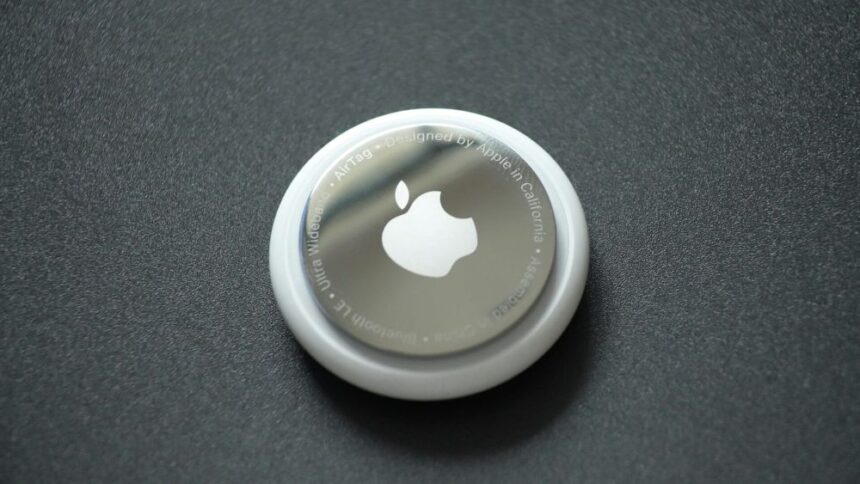
Losing keys, bags, or luggage causes instant stress. Smart trackers help solve that problem, especially those that connect with Apple’s Find My network. Yet, before adding one to your iPhone, it helps to know how these devices work and what settings affect privacy and precision. You should understand how a smart key tracker connects, what data it shares, and how the Find My network locates your items securely.
Apple’s Find My system allows supported trackers to appear on the same map as your Apple devices. That means you can see their last known location or even play a sound to help you find them. However, each tracker differs slightly in battery life, signal strength, and setup steps. Exploring models such as a smart key tracker gives a sense of how simple pairing can be once the basics are clear.
For many users, choosing a tracker that fits everyday needs matters most. Those who travel often may value long range, while minimalists may prefer small, discreet designs. Understanding these factors before pairing helps avoid confusion and gives stronger control over how personal items stay connected and protected.
Key Takeaways
- Learn how a smart tracker connects and works on Apple Find My.
- Know what setup steps and settings affect privacy and performance.
- Choose a tracker design that matches lifestyle and daily habits.
Key Considerations Before Connecting a Smart Tracker to Apple Find My
Users should confirm that their smart tracker works properly with Apple Find My, understand how data and alerts operate, and manage the device’s upkeep. They should also know the boundaries of Apple’s tracking network and what it can and cannot do.
Compatibility Requirements
A smart tracker must support the Apple Find My network before pairing with an iPhone or other device. This network uses Apple’s secure location system, so only approved accessories can connect. Users should check the product box or manufacturer details for the “Works with Apple Find My” label.
A compatible device connects through the Find My app already installed on the iPhone. After opening the app, users can add a new item under Items > Add Item > Other Supported Item. Devices linked to another Apple ID need removal before connecting. Failure to do this can cause setup errors or prevent pairing.
Smart trackers often differ in range, signal strength, and app integration. Compatibility also affects performance. Only approved accessories support location sharing, lost mode alerts, and map tracking within Apple’s privacy standards.
Privacy and Security Concerns
Apple’s system includes features to deter unwanted tracking. For example, users receive alerts if an unknown tracker moves with them. The goal is to prevent the use of trackers for tracking people without consent, which may break the law in some regions.
Each tracker’s location updates rely on anonymous and encrypted signals from nearby Apple devices. This design limits who can see the location data. Still, users should review their privacy settings, such as which devices and people can access Find My information.
If someone receives a notification about a nearby unknown accessory, they should follow the safety instructions on their iPhone screen. The device can play a sound to reveal its location. These tools help reduce privacy risks while allowing responsible use of tracking technology.
Battery Life and Maintenance
Most smart trackers use a coin cell battery that lasts several months to a year. Battery life depends on usage and exposure to environmental factors. For instance, trackers that face frequent temperature changes or long-distance signals may run out of power sooner.
Users should replace the battery as soon as they receive a low-battery alert in the Find My app. A weak battery can cause inaccurate location updates or disconnections. Some models have a sealed battery that requires replacement of the entire unit.
Proper care extends the device’s lifespan. Users should keep the tracker dry, avoid extreme heat, and check connections after software updates. Routine maintenance helps maintain performance and reduces the chance of sudden loss of signal.
Limitations of Apple Find My Integration
Apple’s Find My network provides wide coverage, but it still has boundaries. The system depends on nearby Apple devices for updates, so remote or low-traffic areas may have slower location refresh rates. This can make tracking less effective outdoors or in rural settings.
Smart trackers connected to the network cannot share precise live movement like GPS trackers. Instead, they update location only when detected by another Apple device. Therefore, the location shown may lag behind real-time movement.
Users also cannot track devices belonging to others unless permission is granted. The app design protects privacy, but it limits some practical uses. Understanding these boundaries helps manage expectations and choose the right device for different tracking needs.
Setting Up and Using Smart Trackers with Apple Find My
Smart trackers connect through the Find My network to help locate personal items like keys or bags. Users must pair each tracker correctly, manage devices efficiently, and follow simple steps to maintain accurate tracking results.
Initial Setup Process
Each compatible tracker connects through Bluetooth and the Find My app. The user starts by turning on the tracker and bringing it close to an Apple device. After opening the Find My app, they select Items and tap Add Item. Choosing Other Supported Item starts pairing. The tracker soon appears on the screen, ready to name and assign to an item.
The device then joins the Find My network, allowing location updates through nearby Apple devices. The user can view the tracker’s position on a map or use the Play Sound feature for nearby searches. If location sharing is active, family members or trusted contacts can also view the item’s location.
To complete setup, users confirm that Bluetooth and Location Services remain active. They should allow app permissions so the network can locate items accurately. Once finished, the tracker operates automatically without additional steps.
Managing Multiple Devices
Each tracker holds a distinct place in the Find My app under the Items tab. Users can rename devices to avoid confusion, especially if several items share similar names. For example, Car Keys or Gym Bag help separate one from another at a glance.
The app allows removal or replacement of a tracker without affecting others on the list. Users who switch devices can re-sync their account to keep items visible. Turning off an old tracker before connecting a replacement prevents connection errors.
Regular checks keep the list tidy and prevent duplicate devices from showing. People with several trackers often create a short note for each device, such as location details or use frequency, to simplify management later.
Best Practices for Reliable Tracking
Strong Bluetooth connection and up-to-date software improve accuracy. Trackers work best in open areas or where Apple devices pass regularly. Users should test each tracker by moving the item short distances to confirm location updates appear quickly.
Battery health plays a major role in performance. Replacing low batteries early prevents loss of tracking information. Some models send alerts when power runs low, making it easier to act in time.
Temperature changes or thick materials may interfere with wireless signals. Placing trackers in accessible spots, such as outer pockets or attached keychains, supports steady connectivity. Updating device software often also prevents technical issues and keeps tracking features consistent.
Conclusion
Anyone setting up a smart tracker with Apple Find My should prepare by understanding how the connection process works. Each device uses Bluetooth and Apple’s encrypted network to help locate lost items. These privacy layers protect personal location data while allowing accurate tracking through an iPhone.
Battery type, whether replaceable or rechargeable, affects how long a tracker lasts before maintenance. Users should also confirm compatibility with their Apple devices and have the latest iOS version installed before setup.
A few simple steps often complete the pairing process. Open the Find My app, choose Items, then tap Add Other Item to start detection. The tracker links directly to the phone without needing a separate app.
Smart trackers provide peace of mind for anyone who misplaces keys, wallets, or bags. They combine technology and ease of use to make item tracking straightforward. Choosing a model suited to individual needs helps users get the most value and convenience from Apple’s Find My network.